跨境独立站开店
Automating e-commerce sites: How to utilize Shopify Flow's Wait function.
This guide explains how to use Shopify Flow's Wait action for automating e-commerce sites. Learn how to set up workflows utilizing time delays and see examples of their use to improve operational efficiency and automate customer service.
This article provides an overview of Shopify Flow, including how to configure Wait actions, its benefits, and examples of its use.
E-commerce operations often involve repetitive tasks, which can quickly add up and consume a lot of time. Shopify Flow is a tool that helps e-commerce businesses reduce this workload and improve operational efficiency. It can automate tasks that previously took a lot of time, such as order management, inventory management, and customer management.
In particular, the Wait action temporarily pauses the next step in a workflow, allowing you to wait for a certain period of time before executing the process. This is useful for automating tasks that require a delay.
This article explains how to set up the Wait action in Shopify Flow, which enables the automation of e-commerce sites, along with examples of its use and its benefits.
What is Shopify Flow?
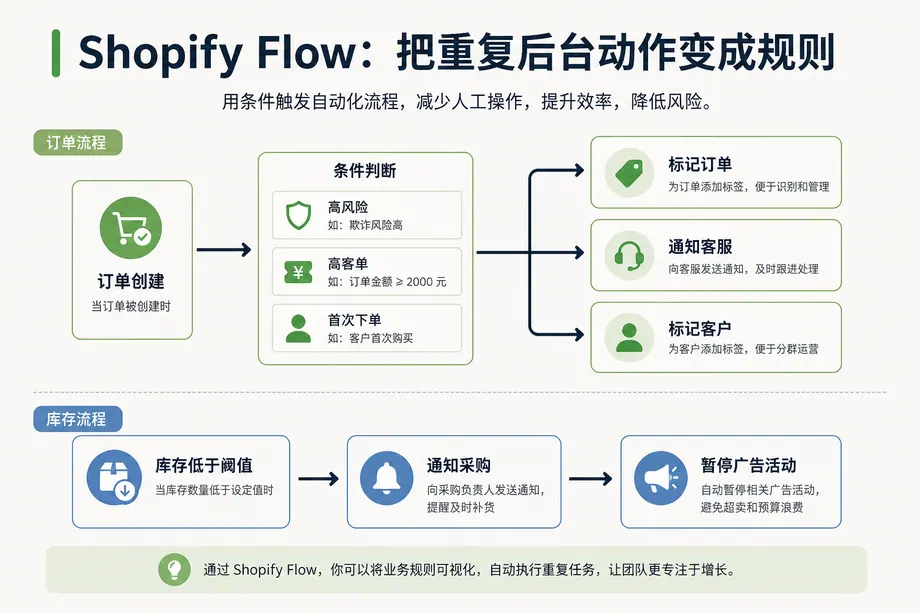
Shopify Flow is an e-commerce automation tool that can automate the operations of your Shopify store. It can automate repetitive e-commerce tasks such as tagging new products based on product name, SKU, color, etc., and hiding out-of-stock items.
You can set up a workflow by combining the following three elements, and no coding knowledge is required.
- Trigger: Specifies what event triggers the automation to start.
- Conditions: Set the conditions for whether or not to run the workflow.
- Action: Specifies what to do when the conditions are met.
For example, you can set a trigger "when an order is created" and specify a condition such as "orders from customers who have returned items five or more times in the past six months." If the condition is met, you can cancel the order, issue a refund, and replenish the item in inventory. In this way, it can be used for various tasks such as inventory management, fraud prevention, customer management, and fulfillment management.
Please note that while Shopify Flow currently only supports English, it is available in Japan.
What is the Wait action in Shopify Flow?
The Shopify Flow Wait action temporarily pauses the next step in a workflow, waits for a set period of time, and then executes the process. It's useful when you want to delay processing for a specified period before proceeding to the next step.
For example, you can set the trigger to "When an order is created," the Wait action to "Wait for 2 days," and the condition and action to "Notify the person in charge if the order has not been shipped." In this case, subsequent conditions and actions will be put on hold for 2 days after the order is created. If the order has not been shipped after 2 days, the person in charge will be notified.
Benefits of using Shopify Flow's Wait action
- Follow up with customers at the optimal time: Automatically send follow-up messages at times that match the customer's purchase history, such as a few days or weeks later. This is effective for promoting upselling, cross-selling, and repeat purchases.
- Streamline tasks you want to perform after a certain period: You can automatically check order and delivery status after a set period, such as unshipped items, chargebacks, and returns, and take appropriate actions based on the situation. This reduces manual checking and leads to increased operational efficiency.
- Processing based on the latest information: Workflow-related data is updated as soon as the waiting period ends. Even if order status or customer information changes during the waiting period, processing can be done based on the updated situation, making it easier to prevent unnecessary notifications and inappropriate responses.
- Flexible waiting time settings: You can specify the number of hours or days, and wait for up to 90 days.
How to configure the Wait action in Shopify Flow
- Open Shopify Flow from the Shopify settings screen.
- Create a new workflow using "Create Workflow," or open and edit an existing workflow.
- Set triggers (e.g., Order created (when order information is created), Customer created (when customer information is created)).
- Add a Wait action to the point where you want to pause the process.
- Enter the waiting time in "How long to wait".
- After the Wait command, add a Condition or Action to be executed after the waiting period has elapsed.
- Review the content and activate it by clicking "Turn on workflow".
Examples of using the Shopify Flow Wait action
- Check orders that have not been shipped for a certain period of time.
- Remove items from your collection after a certain period of time.
- Upselling after purchase
- Follow up on abandoned checkouts after a certain period of time.
- Send different thank-you emails to each customer after their purchase.
Instead of checking the shipping status immediately after an order is placed, we wait a certain period of time before checking the fulfillment status. If the order has not been shipped after the set period, it is possible to automate the process to notify the responsible person.
Shopify Flow provides a template that tracks orders in Google Sheets and sends notifications via Slack if an order is not shipped within two days of being placed.
New products can be displayed in collections such as "New Arrivals" for a limited time, and then automatically removed from the collection after that period. Removing product tags at the same time reduces the effort required for product management.
For example, you can set it up like this:
- When new products are added, tag them with "New Products" and add them to the "New Arrivals" collection.
- Wait 30 days
- After 30 days, remove the items from the collection and remove the tags.
By setting it up this way, you eliminate the need to manually check when each product was released and replace items, keeping your collection always up-to-date. Shopify Flow provides templates, making it easy to set up.
After a certain period of time has passed, you can send customers emails or SMS messages recommending products. You can also choose the delivery method based on the customer, such as sending SMS messages to customers who have consented to receive them, and emails to customers who are eligible for email distribution.
Immediately after purchase, customers often haven't received their items yet or haven't used them, so it's more effective to introduce related products after some time has passed and they've started using them.
For example, by using a Shopify Flow template, you can send emails or social media messages promoting higher-end models 14 days after an initial purchase, enabling upselling.
You can send emails to customers who have reached the checkout stage but have not completed their purchase, prompting them to wait a certain amount of time before making a purchase. For example, you can send a reminder email 10 hours after checkout to encourage them to complete their order.
By default, Shopify Flow templates are configured to automatically send marketing emails to customers who have consented to receiving them.
You can also tailor email content to each customer based on their order history. For example, you could send a thank-you email specifically for first-time buyers one day after their first purchase, and a thank-you email specifically for repeat customers one day after their second purchase. By changing the content based on the number of purchases, you can build stronger relationships with your customers.
Shopify Flow's Wait action allows you to automate tasks that need to be performed after a certain period, such as checking shipping status, managing inventory, and post-purchase marketing. Even if orders or customer information change while waiting, the system will process them based on the latest information at the end of the waiting period, making it easier to prevent unnecessary notifications and inappropriate responses.
Let's automate e-commerce by combining Wait actions with various tasks.
Frequently Asked Questions about Shopify Flow's Wait Action
Is the Shopify Flow Wait action available during the trial period?
The Shopify Flow Wait action is not available during your Shopify trial period. Shopify Flow is available in the Basic, Grow, Advanced, and Plus plans.
What are the advantages of using Shopify Flow's Wait action?
- Customer follow-up can be implemented at the optimal time.
- It can streamline tasks that need to be performed after a certain period of time.
- Workflows can be processed based on the latest information.
- Waiting times can be set flexibly.
Can the Wait action in Shopify Flow be changed after it has been set up?
The Wait action in Shopify Flow can be modified even after it has been set up. If you change the conditions or actions while the wait is in progress, the new settings will be applied after the wait ends, so you need to be careful about when you make changes.
Share this article
- Share on Facebook
- Share on X
- Share on LinkedIn